While Footage.net offers an open-search platform for anyone to explore our global archival video database, creating a professional account unlocks the full power of our stock footage tools. By registering, you gain access to the Footage.net Research Dashboard, high-resolution clip downloads, and our proprietary ZAP Email request system to reach multiple footage libraries at once.
How to Create a New Account on Footage.net
Step 1: Navigate to the Registration Portal
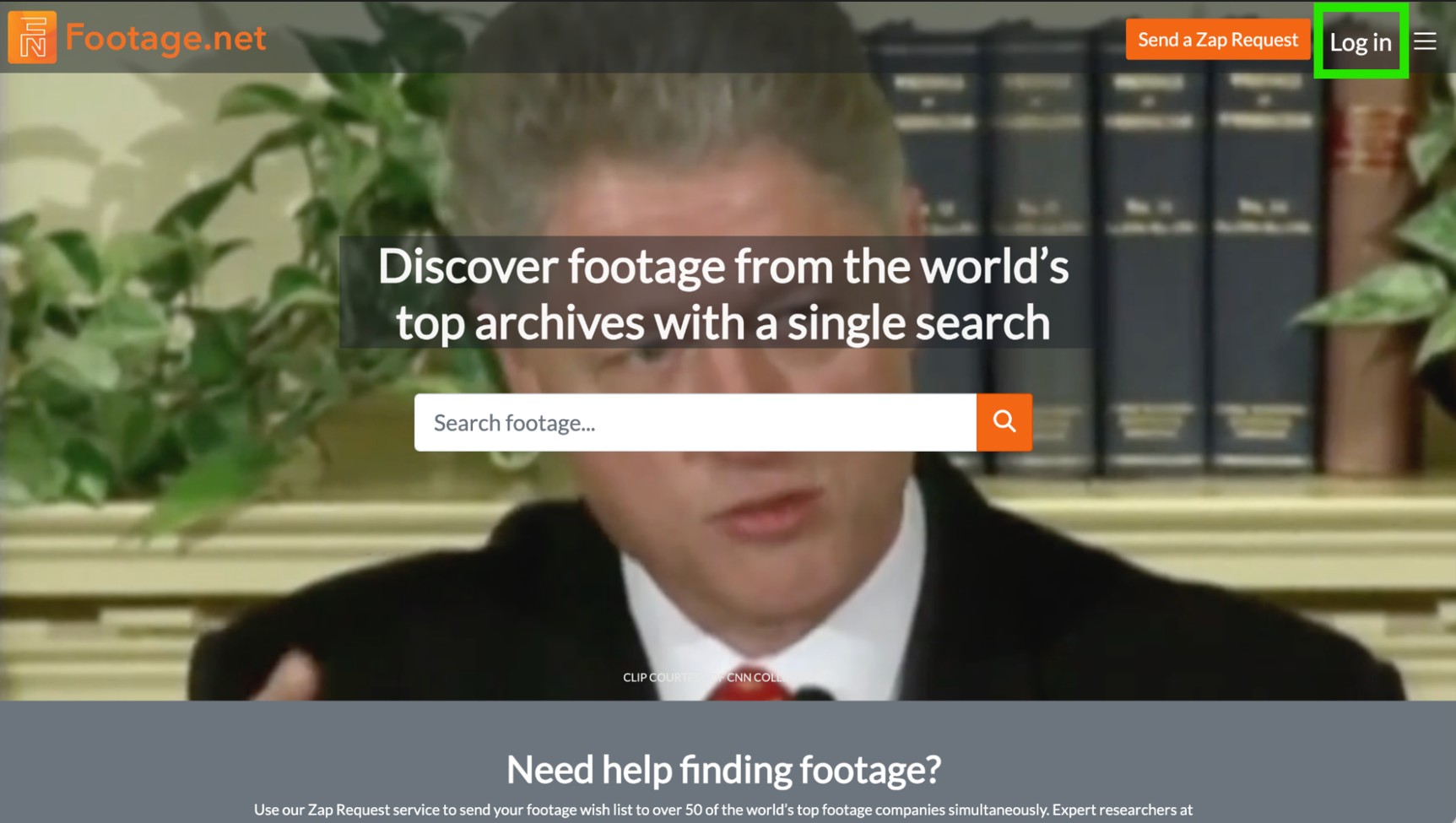
To get started, visit the Footage.net homepage. Click on the “Login” button located in the top navigation menu. This initiates the secure registration process for the Footage.net ecosystem.
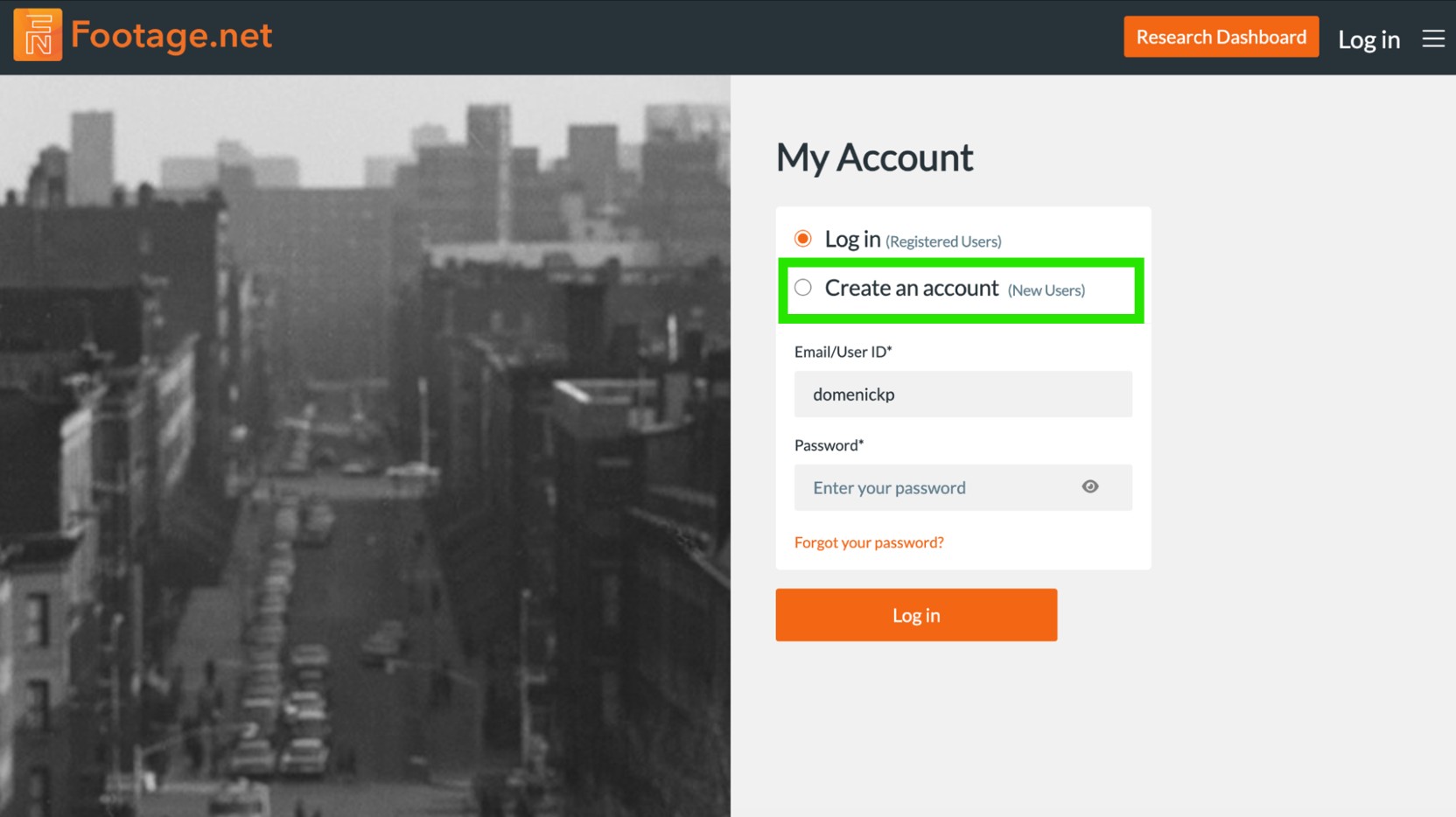
You’ll then be taken to a page where you can either log in with current credentials or create an account.
Step 2: Complete the Account Information Form
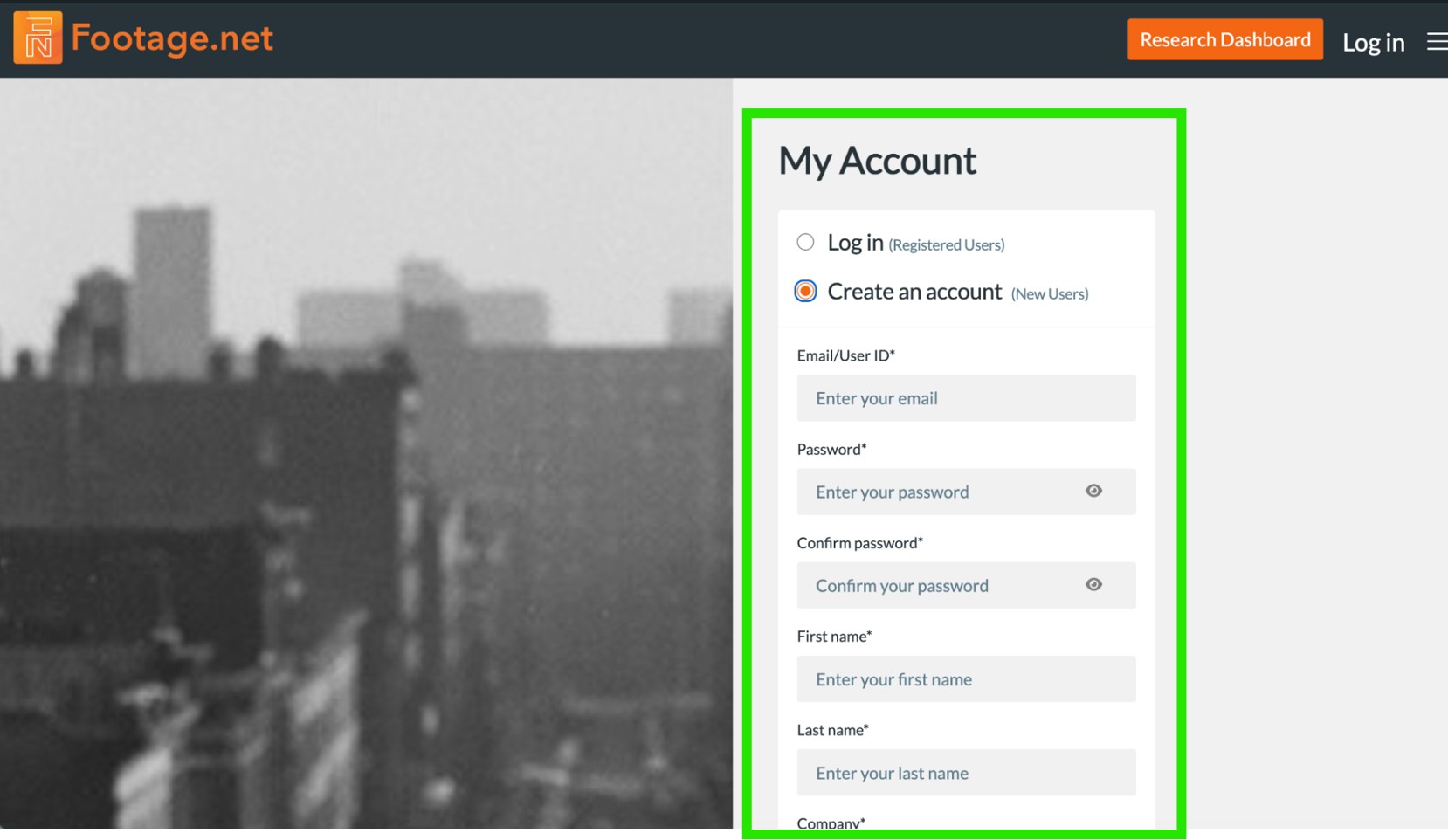
Fill out the required fields in the Footage.net Account Form. To ensure you receive accurate licensing information and research support, please provide your:
- Business Email Address
- Preferred Password
- First Name
- Last Name
- Company Name or Who You Are Doing Research For
- Address
- City
- State/Province Region
- Postal Code
- Country
- Phone
- Primary area of interest (e.g., documentary, broadcast, advertising).
Step 3: Review the Terms and Conditions and Privacy Policy
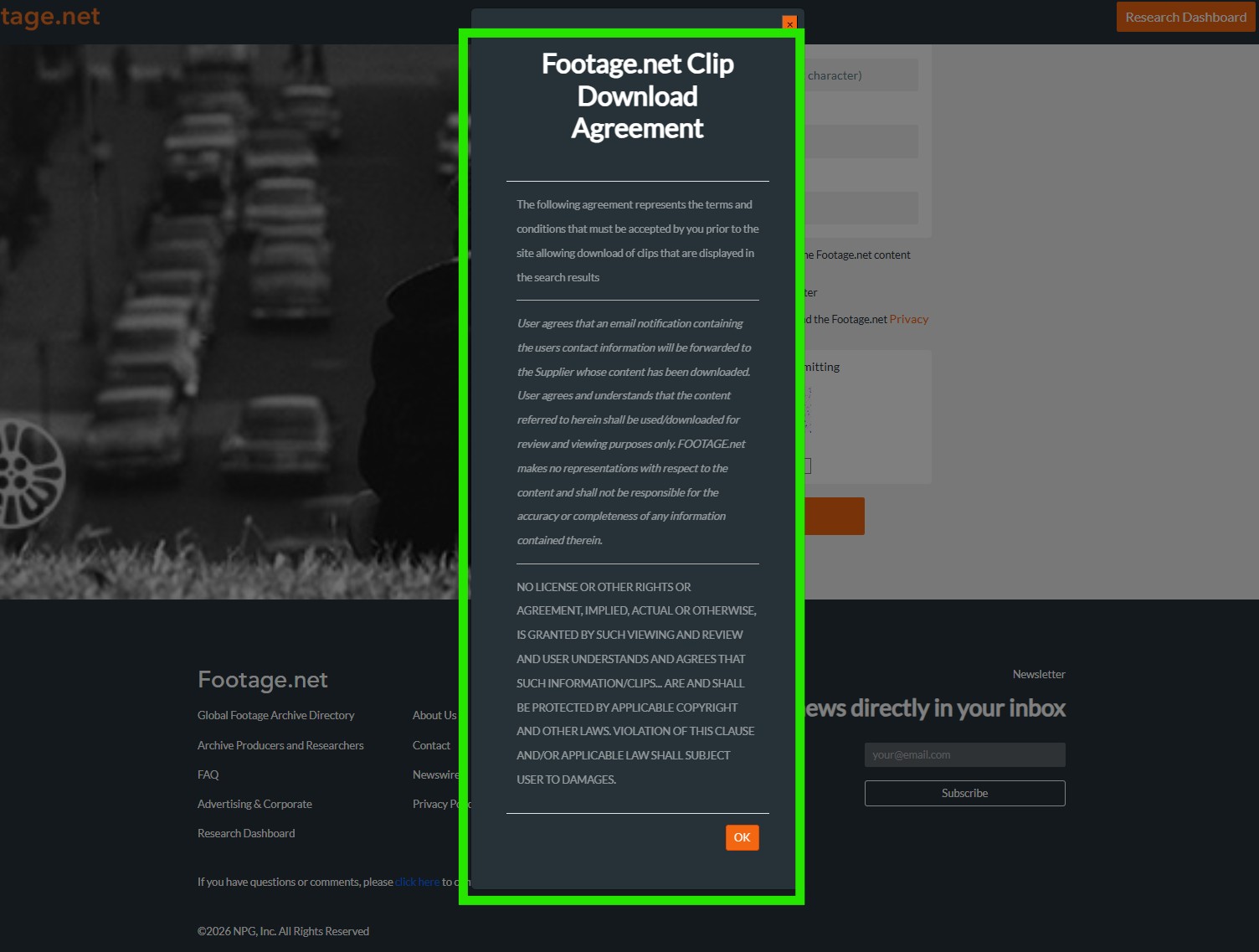
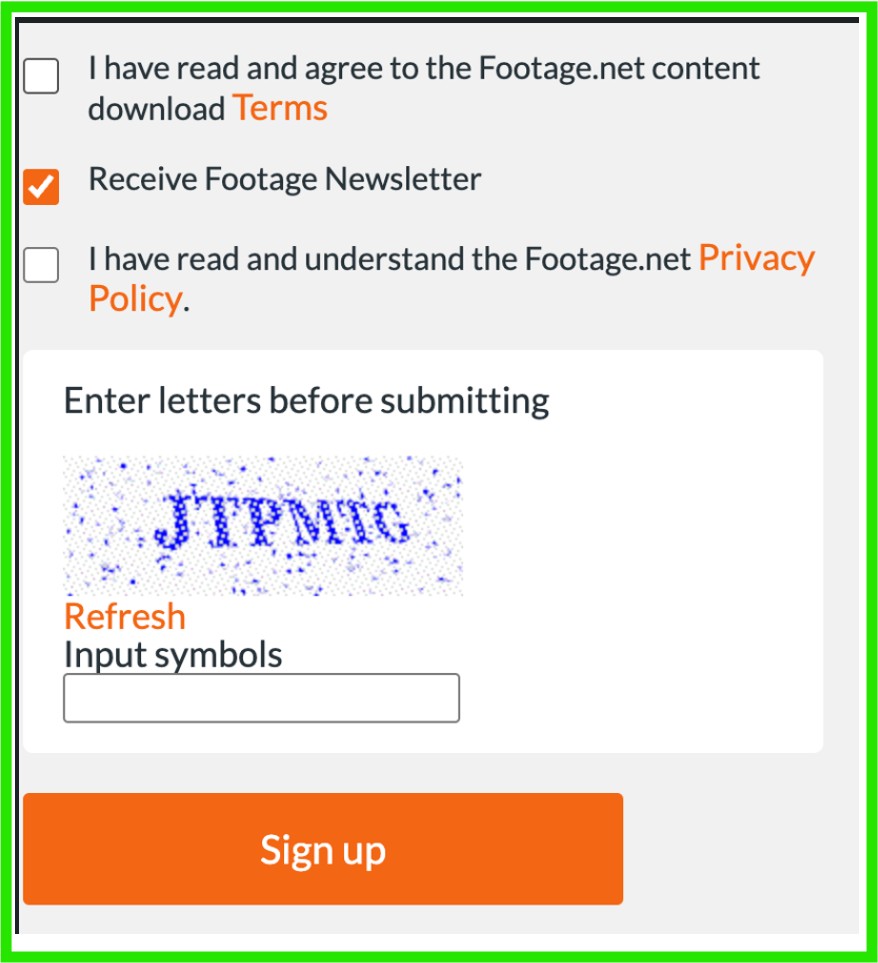
To maintain the integrity of our archival video marketplace all users must review the Footage.net Terms and Conditions and Privacy Policy. This section outlines the usage rights for our search tools and the legal framework for submitting ZAP requests to our partner libraries.
Step 5: Validate You Are Human
All you have to do for this step is to enter the letters you see into the “Input Symbols” section and click “Sign Up”
Step 6: Verify Your Email Address
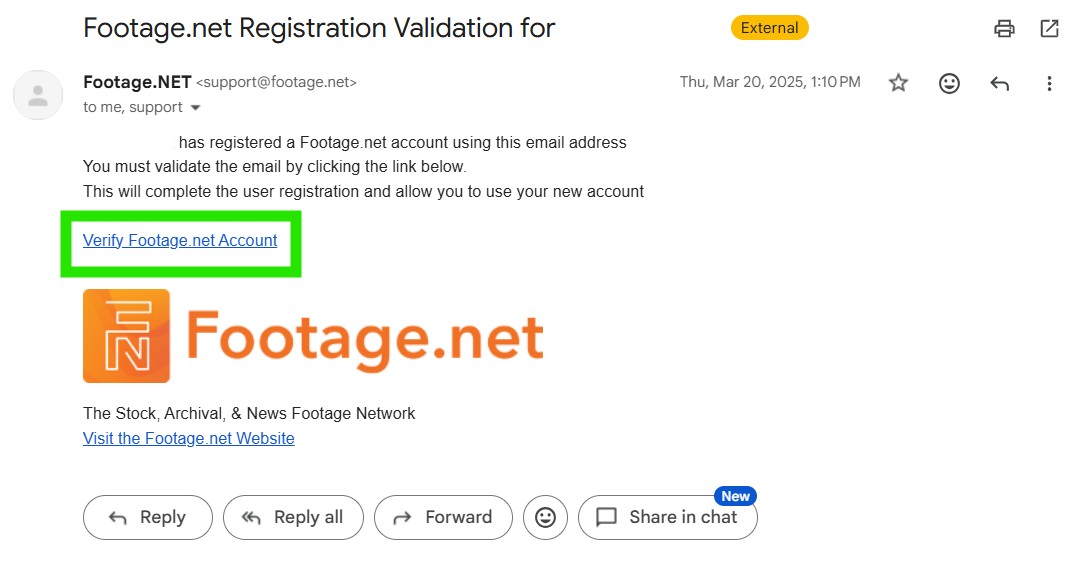
After submitting your form, check your inbox for a verification email from the Footage.net team. Click the secure link provided to activate your account. Once verified, you can immediately begin using the Research Dashboard to organize your stock footage projects.
Congrats! You are Now Part of the Footage.net Family
We are excited for you to join the thousands of users actively using Footage.net. If you have any questions or feedback regarding your experience, please email us at info@footage.net.
Happy searching!