Research is, at its core, a game of finding a needle in a haystack. When you need to find needles fast, and ensure you haven’t missed any, how are you meant to parse the haystack? The Zap Request is your most powerful feature.
A Zap Request is a broadcast-style inquiry system managed by Footage.net. It allows researchers to distribute a “footage wish list” to over two dozen leading global footage archives simultaneously. Instead of contacting individual libraries one by one, the Zap system acts as a central hub for your project requirements.
Once our Zap partners receive and review your request, they’ll respond to you directly, if they have footage that meets your needs. In most cases, you’ll start to hear back from our partners within just a few hours.
How do you send a Zap Request?
The Zap Request process is designed for speed and simplicity. The instructions below will assist you in crafting an effective Zap Request.
Navigating to the Zap Request Form
There are three primary ways to access the Zap Request Form within the Footage.net ecosystem:
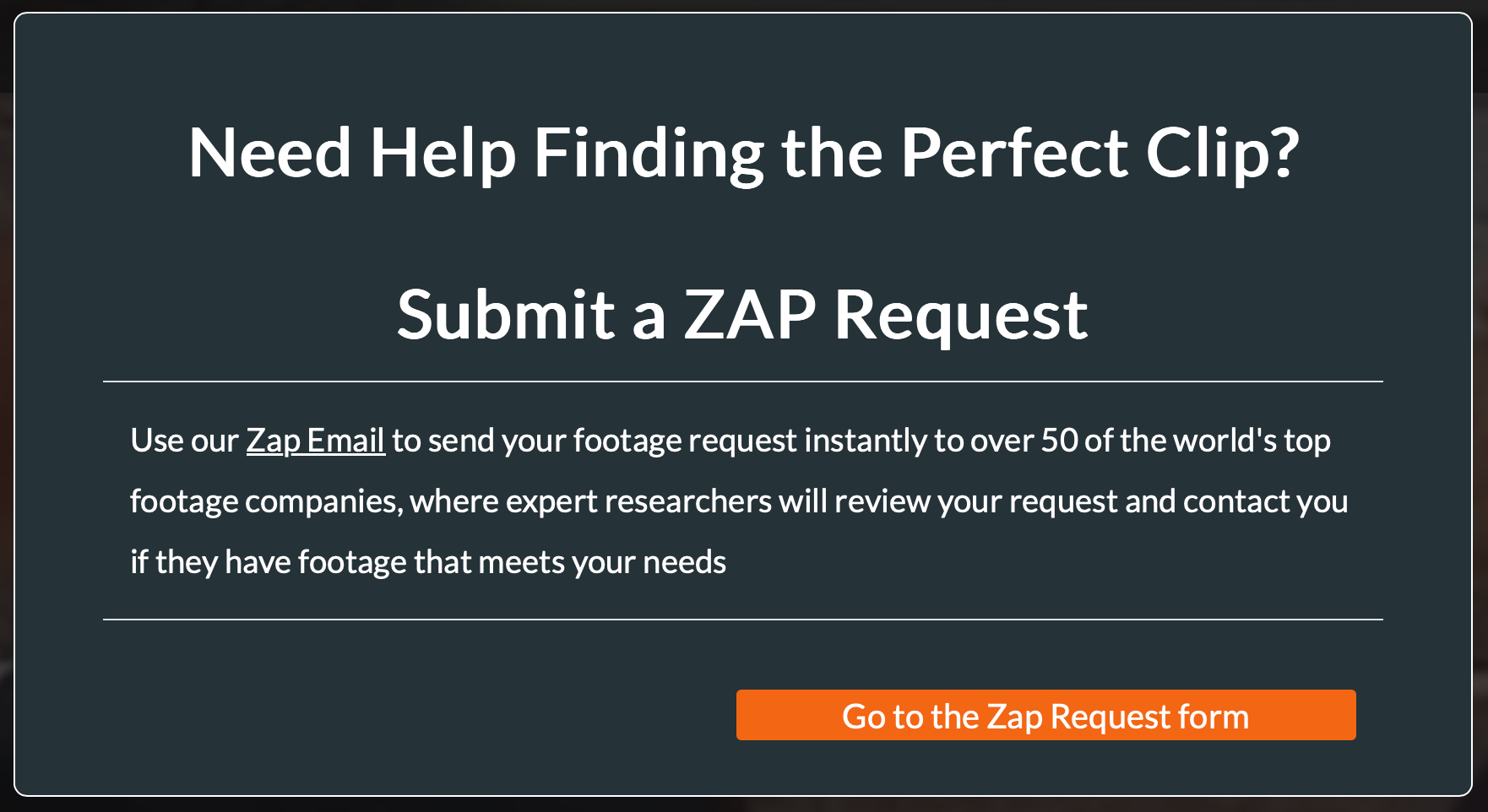
- The Welcome Prompt – New visitors are greeted by a pop-up window providing direct access to the form.
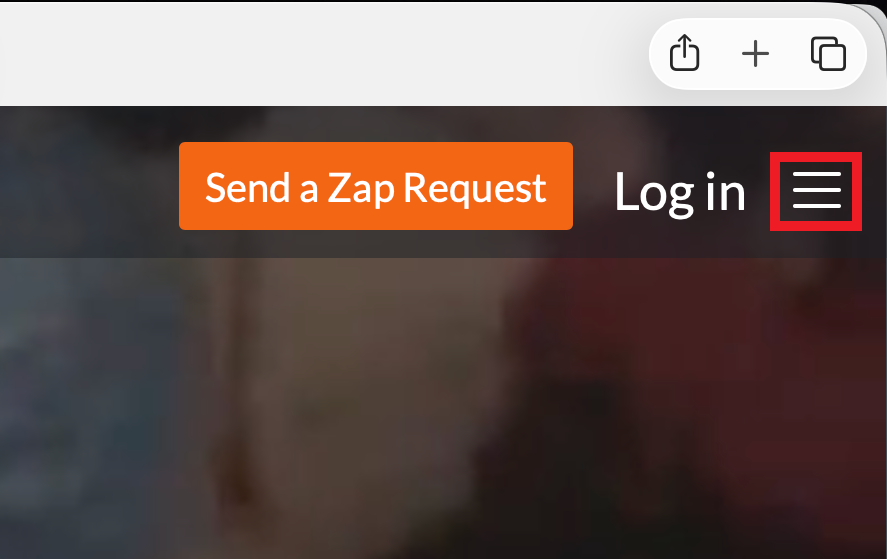
- The Global Menu – Click the “Hamburger” icon (three horizontal lines) in the top-right corner of any page and select “Send a Zap Request.”
- The Homepage Hero – On the main landing page, a dedicated “Send a Zap Request” button is located in the top menu bar next to the account login.
Completing the Request Form
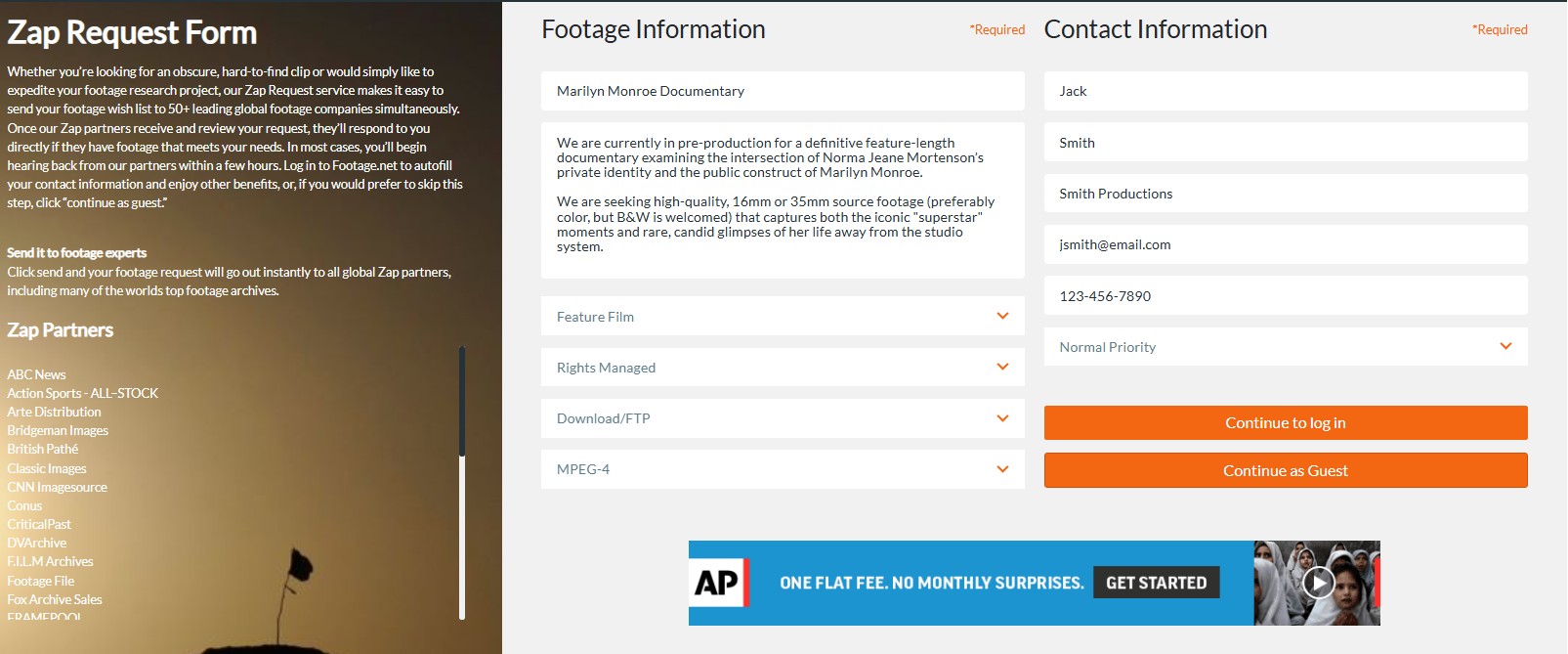
To ensure your request is actionable for our partners, fill out the following core fields:
- Project Identity – Enter your Project Title and a detailed Footage Description.
- Categorization – Use the drop-down menus to define the specific parameters of your search.
- User Details – Provide your contact information.
- Note: If you are logged into your Footage.net Account, these details will auto-populate.
- Guest Option: You may select “Continue as Guest” if you prefer not to create an account.
- Priority Level – Mark the urgency of your request to help partners triaging their incoming queues.
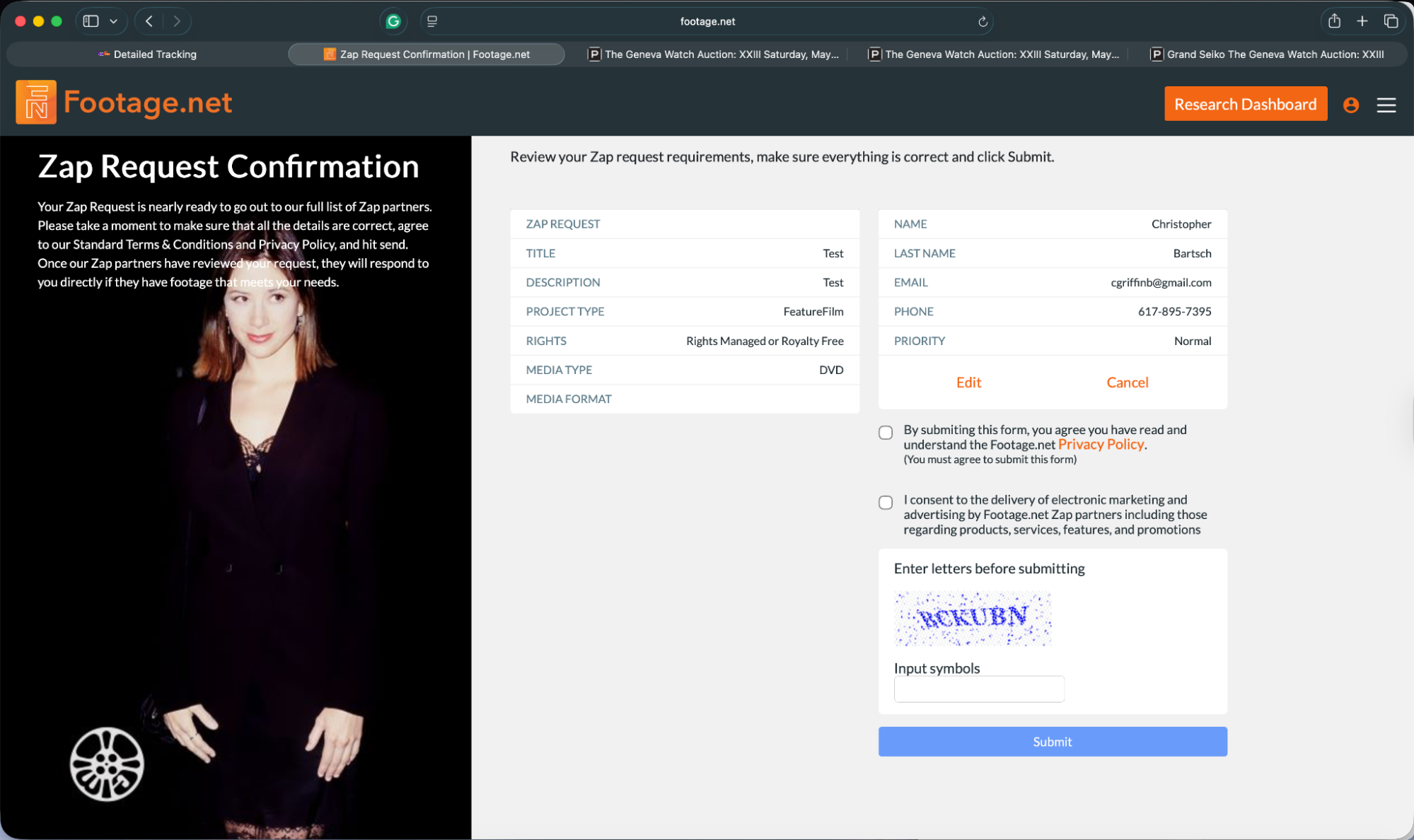
Note: Before submitting, it’s important that you take this opportunity to double check your Zap Request details. Once a Zap Request is submitted, Zap Emails will be generated and immediately sent to over two dozen archive partners.
You can click submit once everything is good to go.
Post-Submission: What to Expect
Once you hit submit, the Zap Request transitions from a draft into an active broadcast event.
- Direct Communication – Responses do not stay within the Footage.net platform; instead, our Footage partners will reach out to you directly via email.
- Rapid Turnaround – Because Zap Emails are delivered instantly, you can expect to receive your first leads as early as a few hours after submission.
- Licensing & Fulfillment – From this point, you will work directly with the relevant providers to review previews, negotiate terms, and license the content for your project.
For Zap Requests submitted from an active Footage.net account, you can find previously sent Zap Requests through your Research Dashboard by going to your Dashboard and selecting “My Zap Requests” and filtering by date.
Read Our Research Dashboard Tutorial
A free tutorial made to help you navigate Footage.net’s most critical research features.
View Tutorial
Who are Footage.net’s Zap Partners?
Footage.net is proud to work with a group of the world’s leading archival and stock footage providers, including:
You’re Ready to Send a Zap Email!
Congratulations, you are ready to send your first Zap Request. Let us know how your experience was or tips to improve your experience. Email us at info@footage.net and we’ll respond as soon as we can.