Footage.net’s search engine is engineered specifically for the workflows of Archival Producers and Researchers. Our platform aggregates millions of records from the world’s most prestigious video libraries into a single, unified search interface. This allows you to discover rare historical moments and contemporary stock footage without navigating dozens of individual archive sites.
This tutorial will walk you through the basics of how to use our search engine and find the perfect clip for your project.
Step 1: Search Prerequisites (Optional)
We recommend having the following prerequisites completed to maximize your Footage.net search experience.
- Active Account – Ensure you are logged into your Footage.net account to save clips to your Research Dashboard. (Sign up for an account)
- Research Brief – Have your keywords, date ranges, and desired licensing rights (Rights-Managed or Royalty-Free) ready.
Step 2: Access the Footage.net Global Search Engine
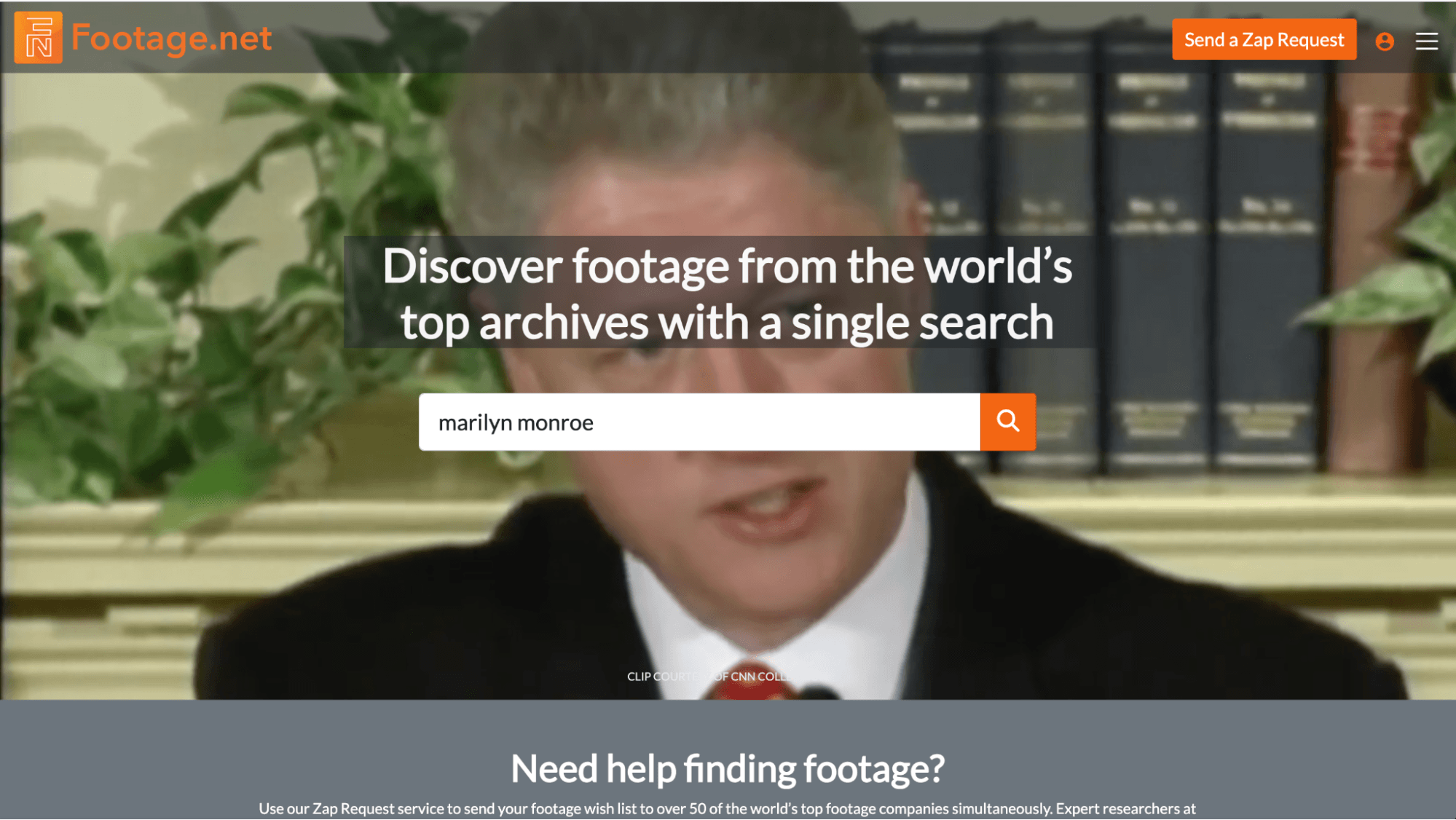
Start by navigating to the Footage.net homepage. This is the central hub where our proprietary search technology connects you to millions of archival records.
Step 3: Conduct Your First Search
In the center of the homepage, you will find the Footage.net Global Search Bar. This is the most powerful tool for archival producers.
- Input Keywords – Type in the specific keywords, dates, or names that identify the content you need (e.g., “1960s space race” or “London street scenes 4k”).
- Initiate Search – Click on the “Search” icon or hit Enter.
- The Result – Footage.net will simultaneously query over 26 of the world’s top stock footage archives, bringing all relevant results into a single, easy-to-navigate list.
Step 4: View Your Results
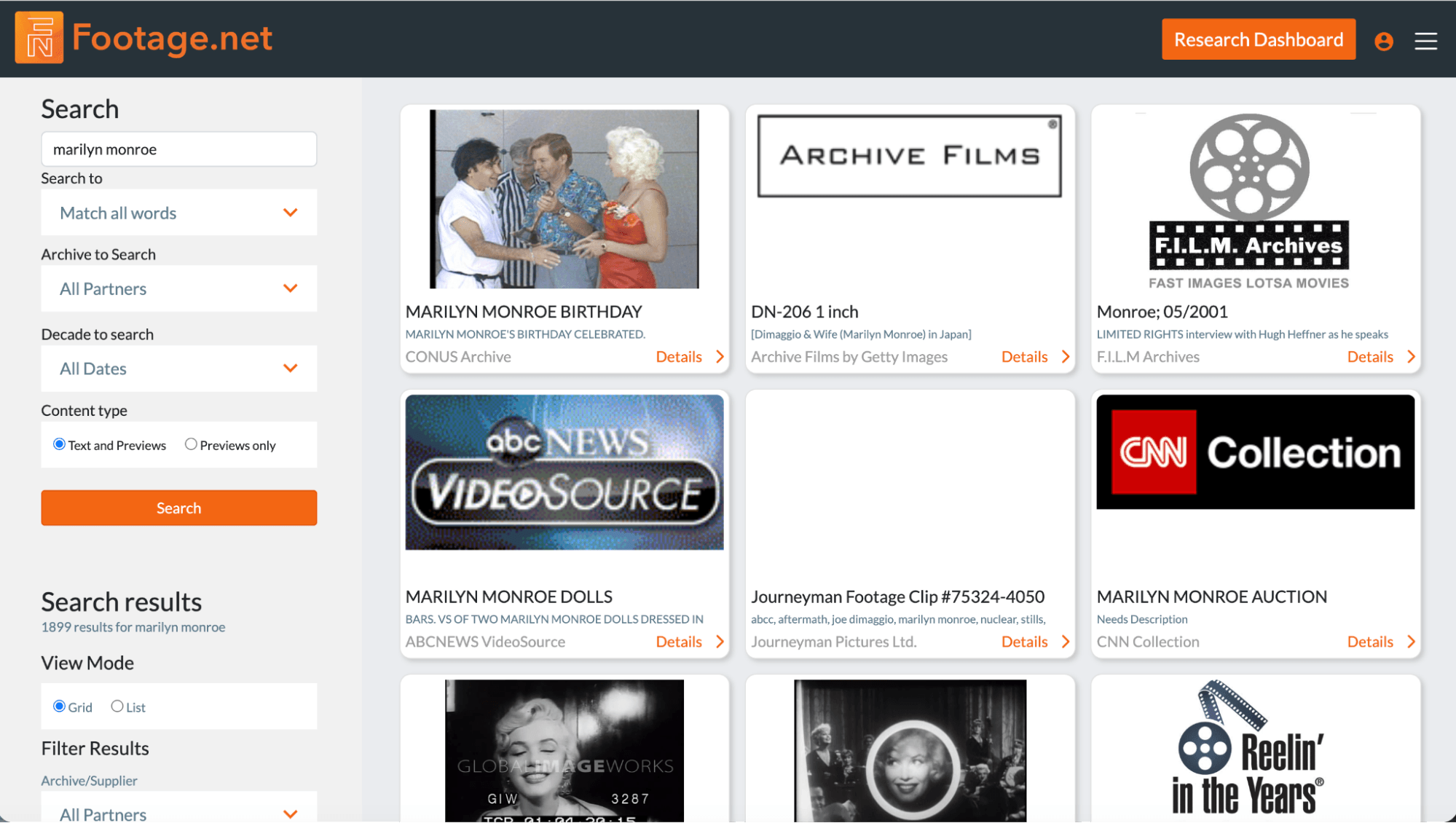
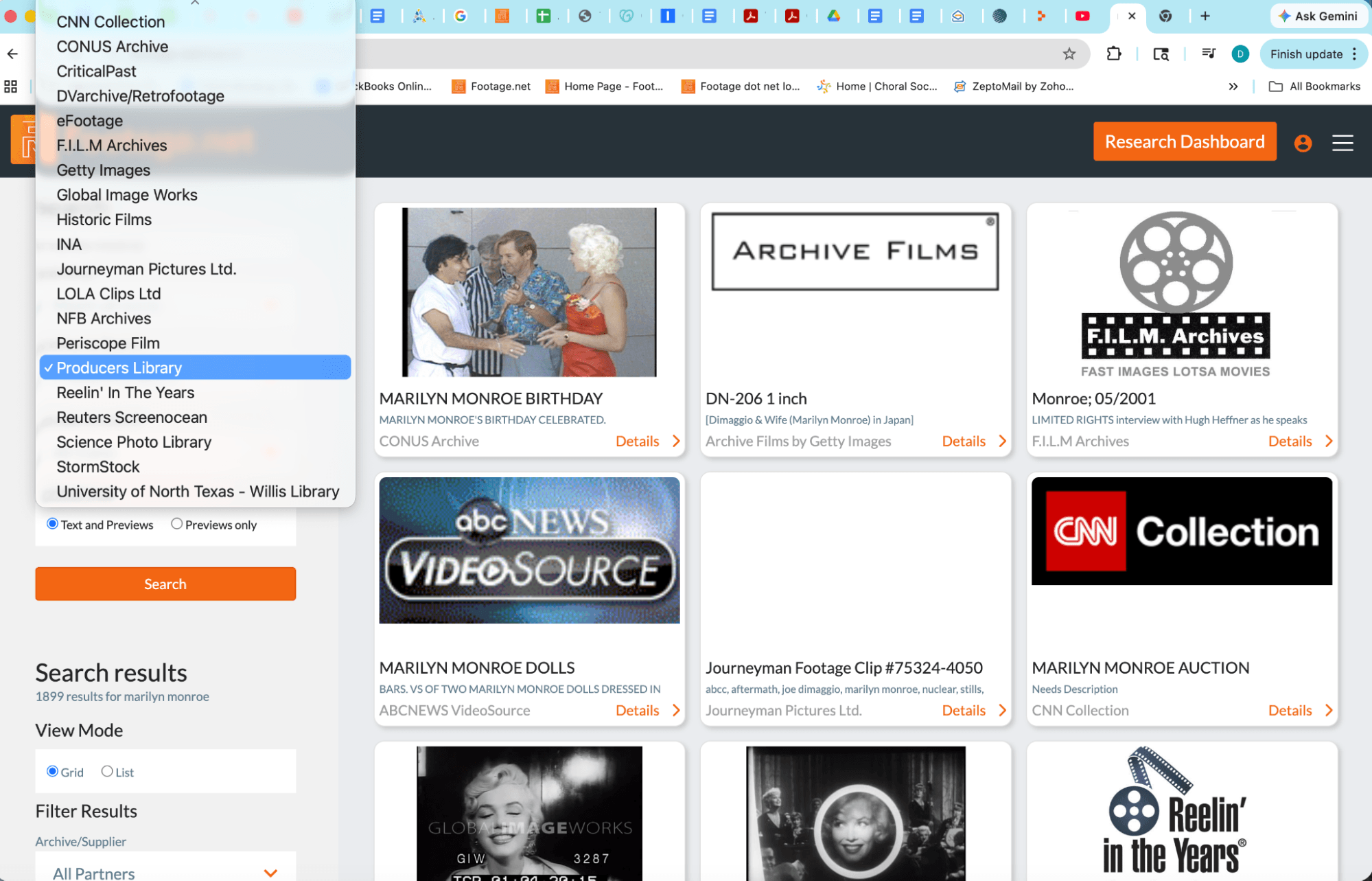
Once your search is complete, Footage.net displays your findings in a clean, professional 4×4 grid formation.
- Comprehensive Coverage – These results are a unified reflection of all available footage from our partner archives.
- Default View (Text Records) – By default, the search engine prioritizes text records. This ensures that even if a physical video file isn’t immediately playable online, you still see the critical metadata and descriptions for rare or offline clips that can be requested for viewing.
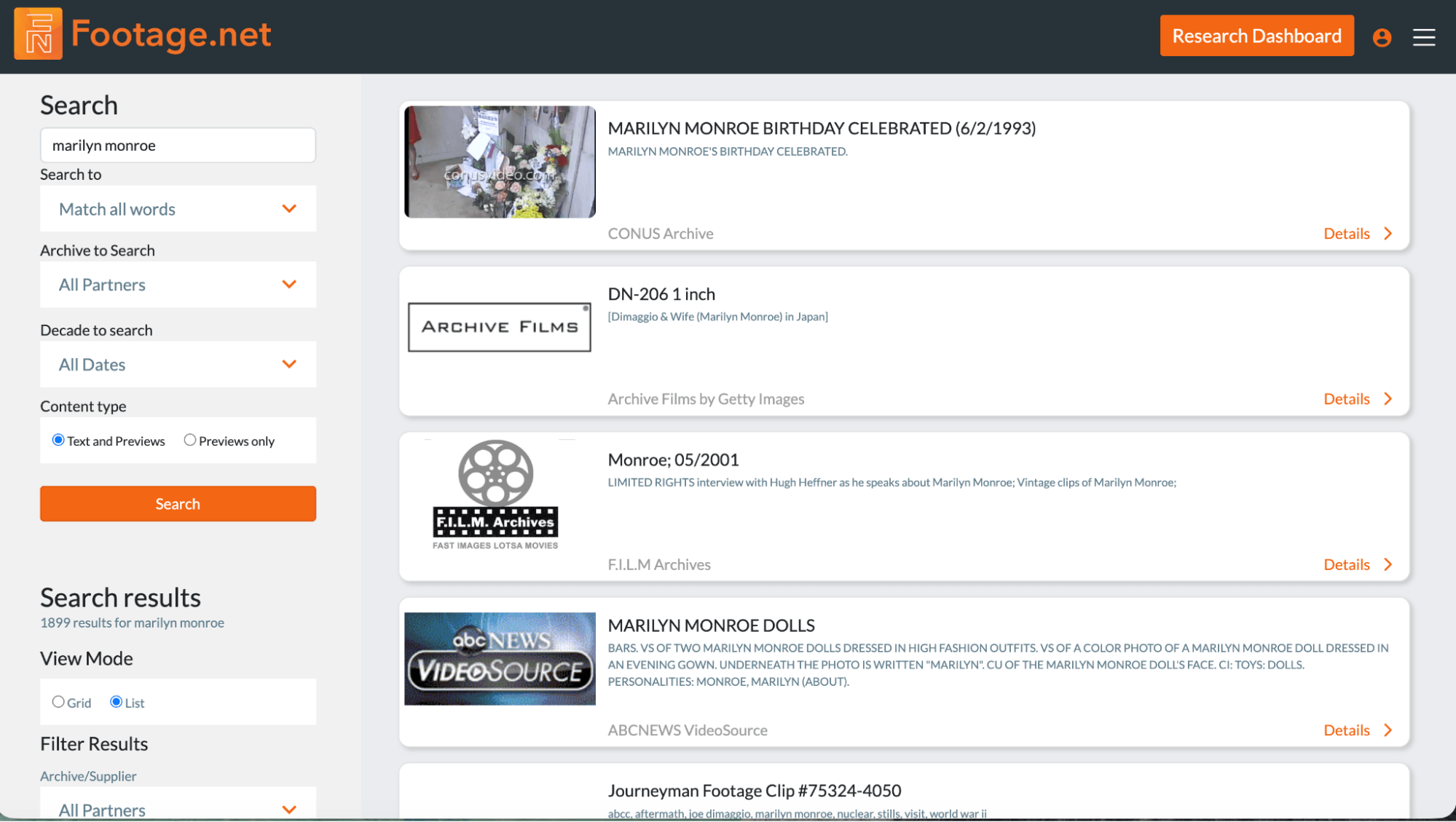
If you prefer, you can also opt to view as a list by navigating to “View Mode” in the left hand navigation and selecting “List”.
Step 5: Refine with Advanced Search Features
If you want to expand or refine your search, use the sidebar filters to narrow your scope. You can isolate specific Footage.net Archive Partners, set narrow date ranges, or filter specifically for clips with playable screening files.
At the core of our search engine there are four primary features:
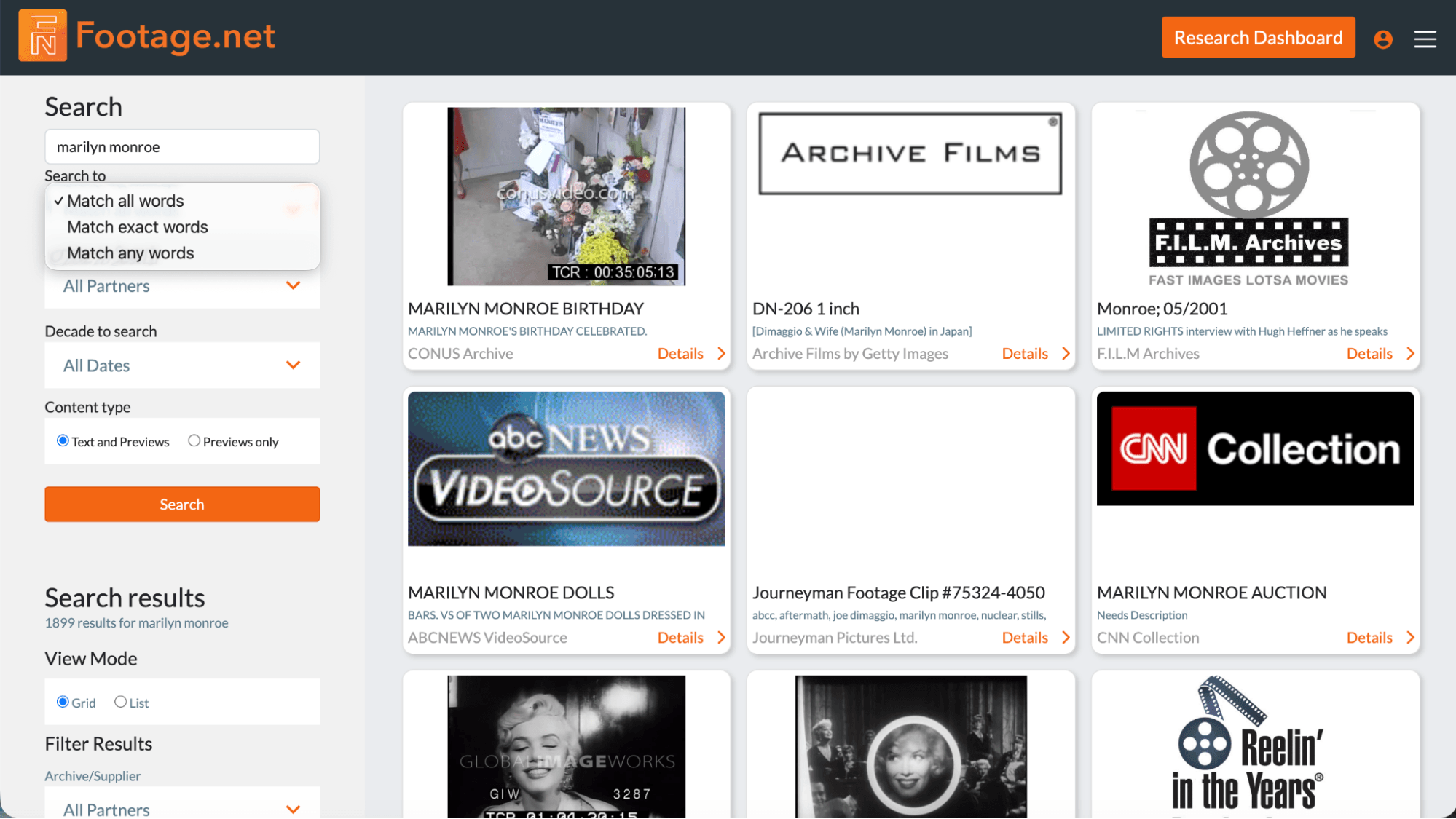
- Keyword Logic Filters: Choose how the search engine interprets your keywords to increase precision:
- Match All Words: Results must contain every keyword entered.
- Match Exact Phrase: Results must contain the keywords in the exact order specified.
- Match Any Words: A broader search that returns results containing any of your keywords.
- Date Range Selection: Narrow your search to a specific historical window. Note: Results are dependent on the specific metadata provided by our partner archives.
- Deep Content Search (Text vs. Previews): This is a Footage.net exclusive feature. We are the only platform to allow you to search “Deep Content”— historical records that have not yet been digitized. By selecting “Text Search”, you can discover rare material hidden in physical vaults. Alternatively, select “Previews” to focus on digitized files.
- Viewable Clips Only: If you are on a tight deadline, you can refine your search to only display results with playable screening clips that can be viewed immediately.
Footage.net provides the precision required to search within a single, specific collection. This “Deep Search” functionality is ideal when you know exactly which archive holds the historical record you need or if you have preferred archives you like working with.
- Locate the Partner List: On the search results page, navigate to the list of Footage.net Content Partners. This list represents the world’s most elite video libraries, all accessible through our unified interface.
- Filter by Source: Simply click on the name of the specific archive you are interested in (for example, CNN, INA, or Global Image Works).
- Refined Results: The Footage.net 4×4 grid will instantly refresh, limiting the results exclusively to that specific archive.
By isolating a single source, you can easily browse through a specific collection’s metadata and descriptions without the noise of unrelated content, ensuring a more efficient archival research workflow.
To learn more about specific archives visit our Global Footage Archive Directory for detailed profiles of each archive.
Step 6: Review Archival Clips and Comprehensive Metadata
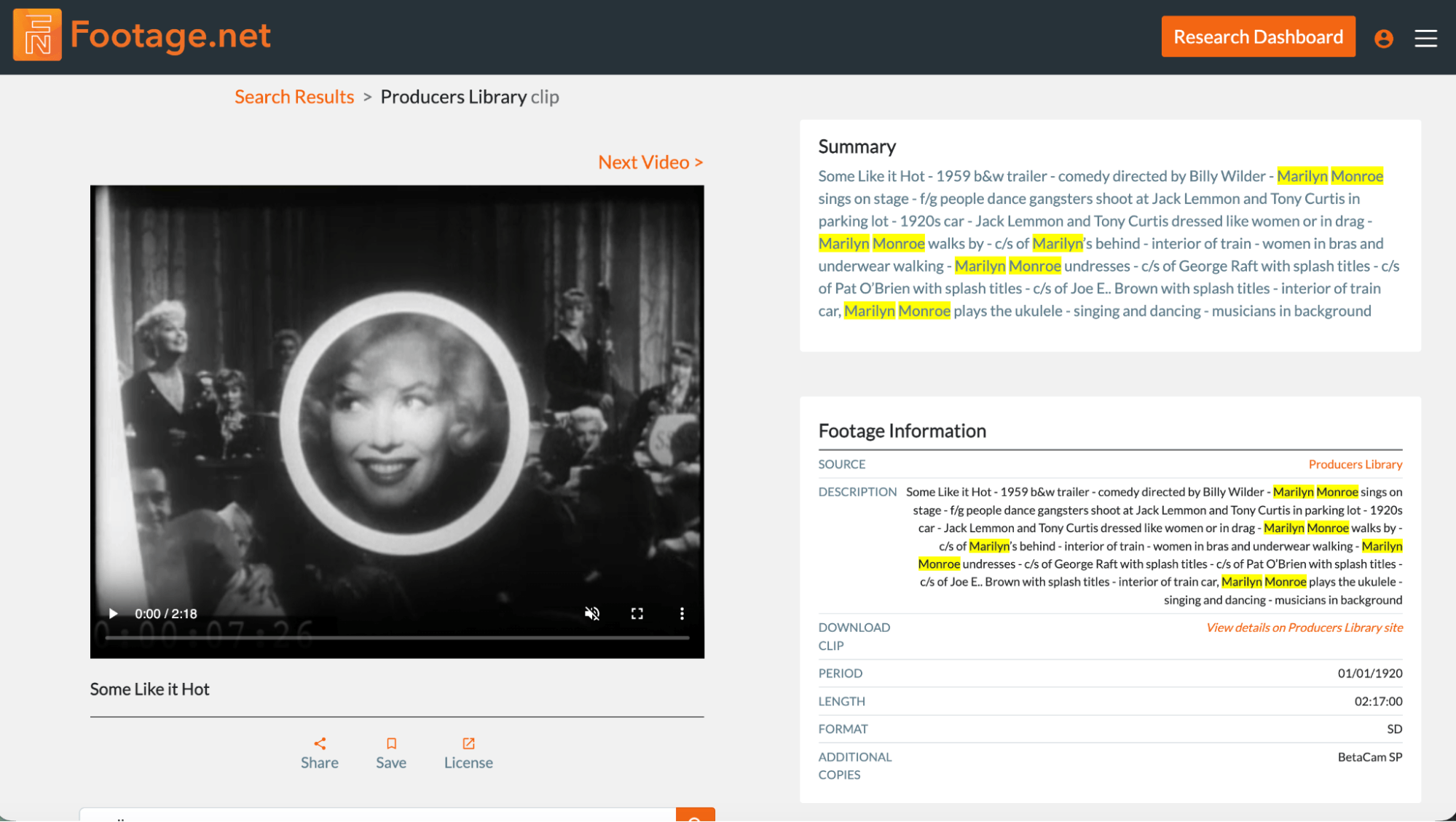
To view a specific record, click the “Details” button located on any result in the grid. This action launches the Footage.net Screening Player, a dedicated viewing environment designed for professional review.
- View the Clip: Press the play icon to launch the low-resolution screening file. This allows you to verify the visual content, camera movement, and subject matter before proceeding to licensing.
- Analyze the Metadata: Alongside the video, you will find the full archival record. This includes critical information such as the source archive, unique ID numbers, date of capture, and detailed descriptions. For “Text Only” records, this metadata provides the essential clues needed to request a physical scan from the content owner.
Streamlining Your Review with “Next Video” Navigation
Archival Producers often need to scan hundreds of clips to find a single “hero shot.” To speed up this process:
- Use the “Next Video” button within the viewer.
- This allows you to cycle through your search results one at a time without ever leaving the viewer interface.
- By staying within the Footage.net player, you can quickly compare metadata across multiple clips, ensuring a more efficient selection process for your project.
Step 7: License Content
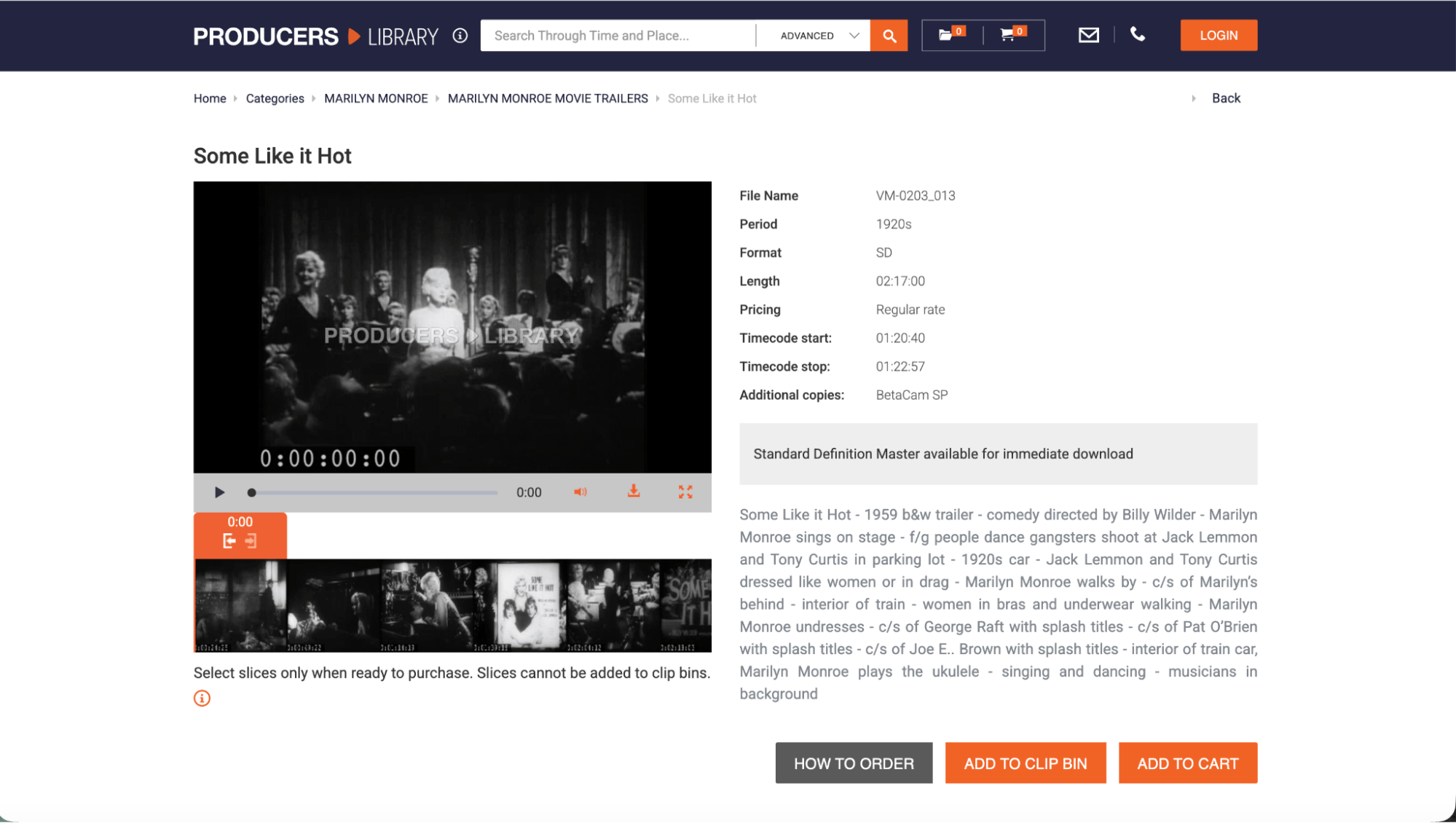
Footage.net provides you with an easy way to connect with the archive site on the record you are interested in. Unlike traditional stock agencies that may obscure the source, our platform is designed to facilitate a direct licensing model. This ensures you negotiate rights and rates directly with the content owner, providing transparency and potentially lowering costs.
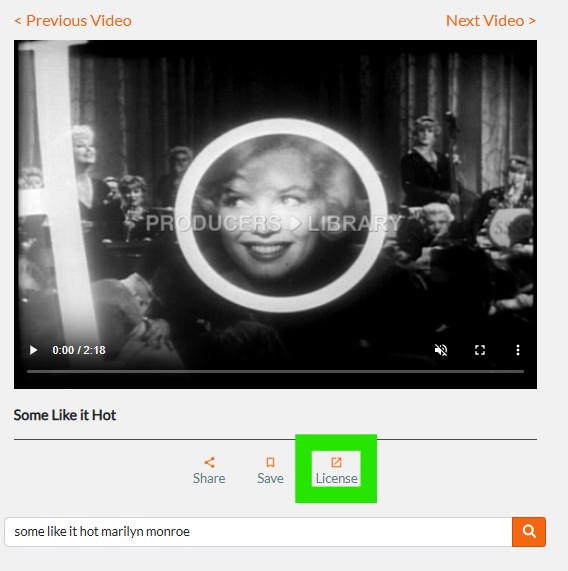
On the Clip Detail Page, click the “License” icon underneath the video preview. This action triggers one of two seamless connection methods:
- Direct Redirect: For many partners, Footage.net will take you directly to the specific asset page on the archive’s own e-commerce site.
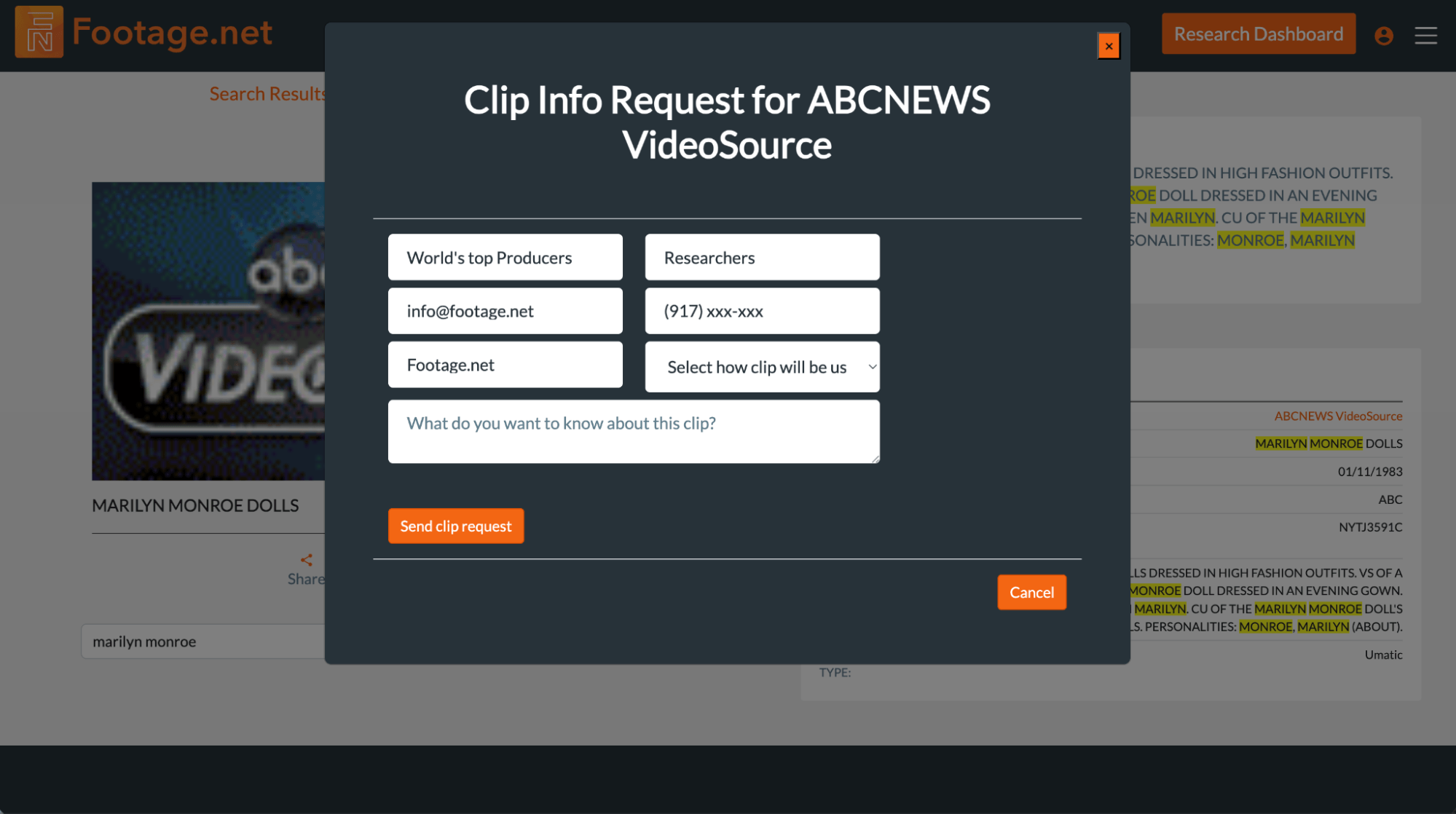
- Footage Information Request: If the archive requires manual clearance, a secure “Clip Info Request” form will appear. This allows you to send your production details and usage requirements directly to the archive’s sales team. If you are logged into your account, all of your personal information will be prefilled.
Once the connection is made, you will work directly with the archive to finalize the license agreement. Because you initiated the search through Footage.net, the archive receives all the necessary metadata (Clip ID, Timecodes, etc.) to process your request quickly.
Other Advanced Footage.net Search Features to Compliment Your Experience
1. Share Clips
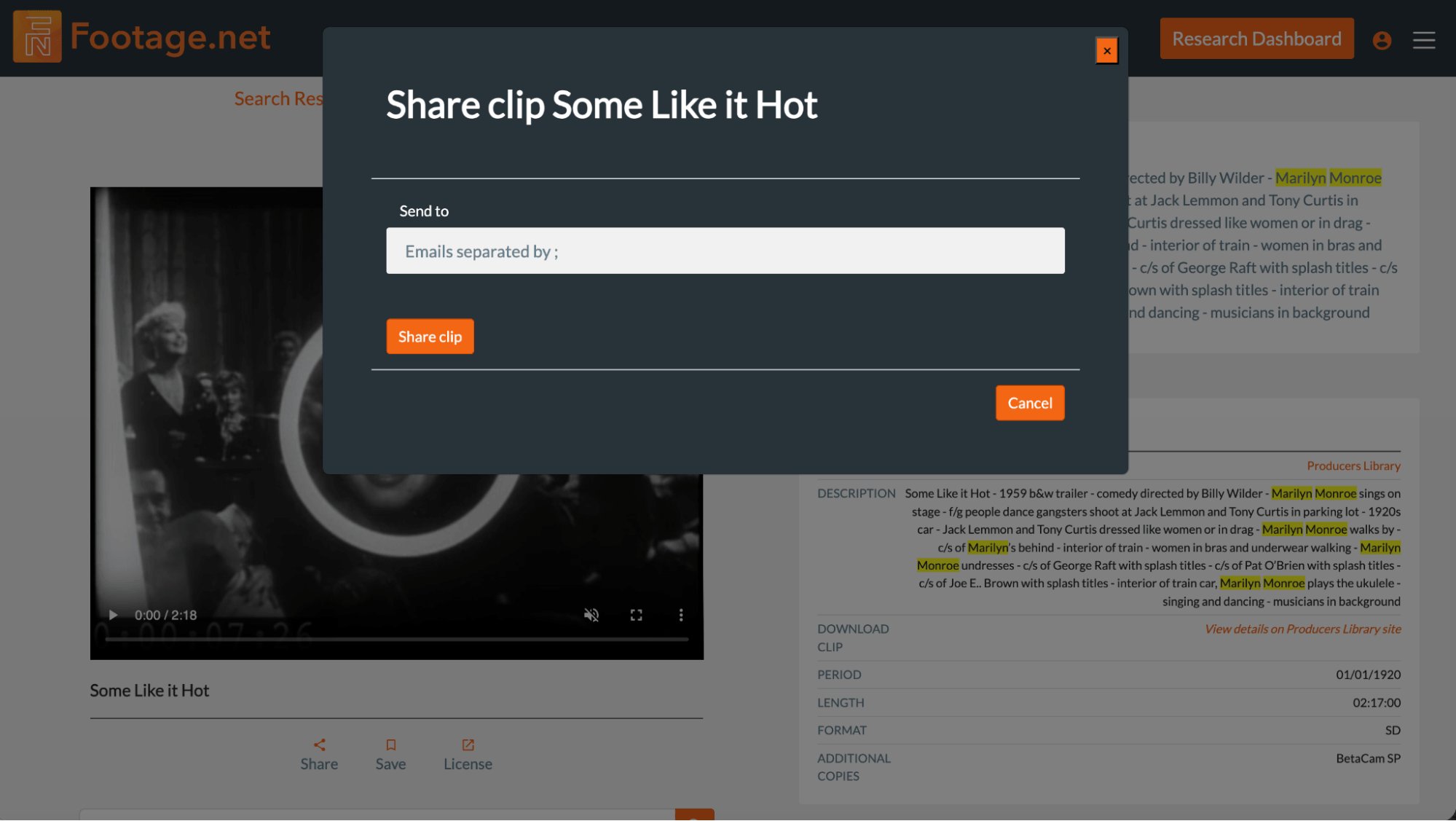
If you want to share the clip with other professionals working on the project, you can simply click the “Share” icon and provide the email. For multiple emails, insert a semicolon {;} in between each email address. Click “Share Clip” and a link will be emailed for others to view the clip.
Read Our Research Dashboard Tutorial
Editor's Note: If you are looking to share multiple clips at once, our Research Dashboard tutorial will walk you through those steps.
View Tutorial
2. Save Clips
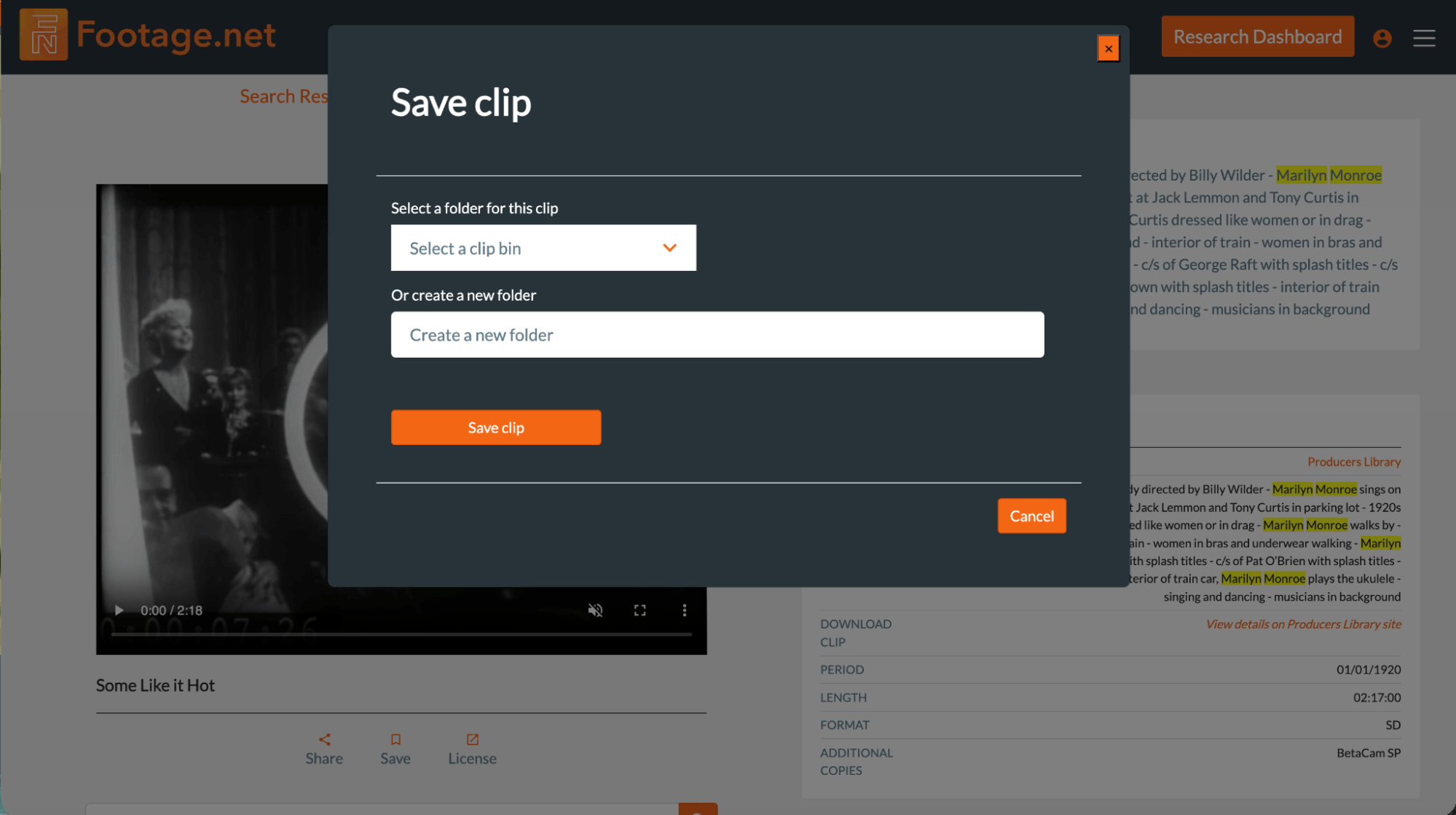
We encourage users to save clips to a project folder, especially if you are interested in multiple clips or working on multiple projects at once. To save a clip:
- You must be a registered footage.net user to use the saving and organization features (register for an account)
- You can create a new folder based on project topic or select a pre-existing folder you’ve already created (view our Research Dashboard tutorial for tips on how to manage saved clips)
- Once you’ve selected a folder, click “Save clip” and your clip will be saved to your Research Dashboard.
3. Info Request
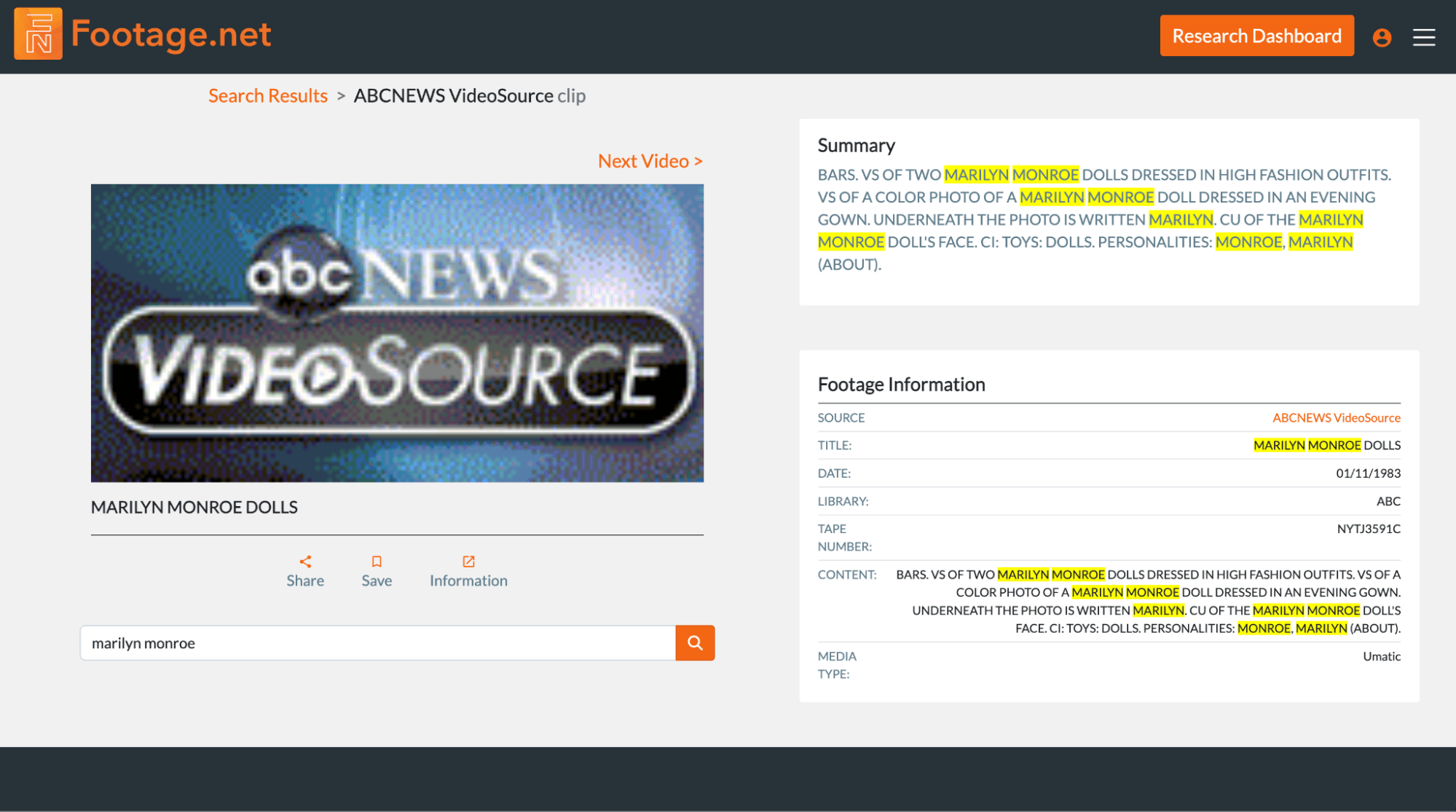
There are several archive partners that do not have the ability to link to license content directly from the archive site, so you’ll see an “Information” icon instead of “License”. If you are logged into your account all of your personal information will be preloaded into the form. You’ll just need to provide specifications on how you plan on using the clip or specific questions you have about it.
Once you’ve filled out the form click “Submit clip request” and the archive will reach out to you directly.
4. Download Clips
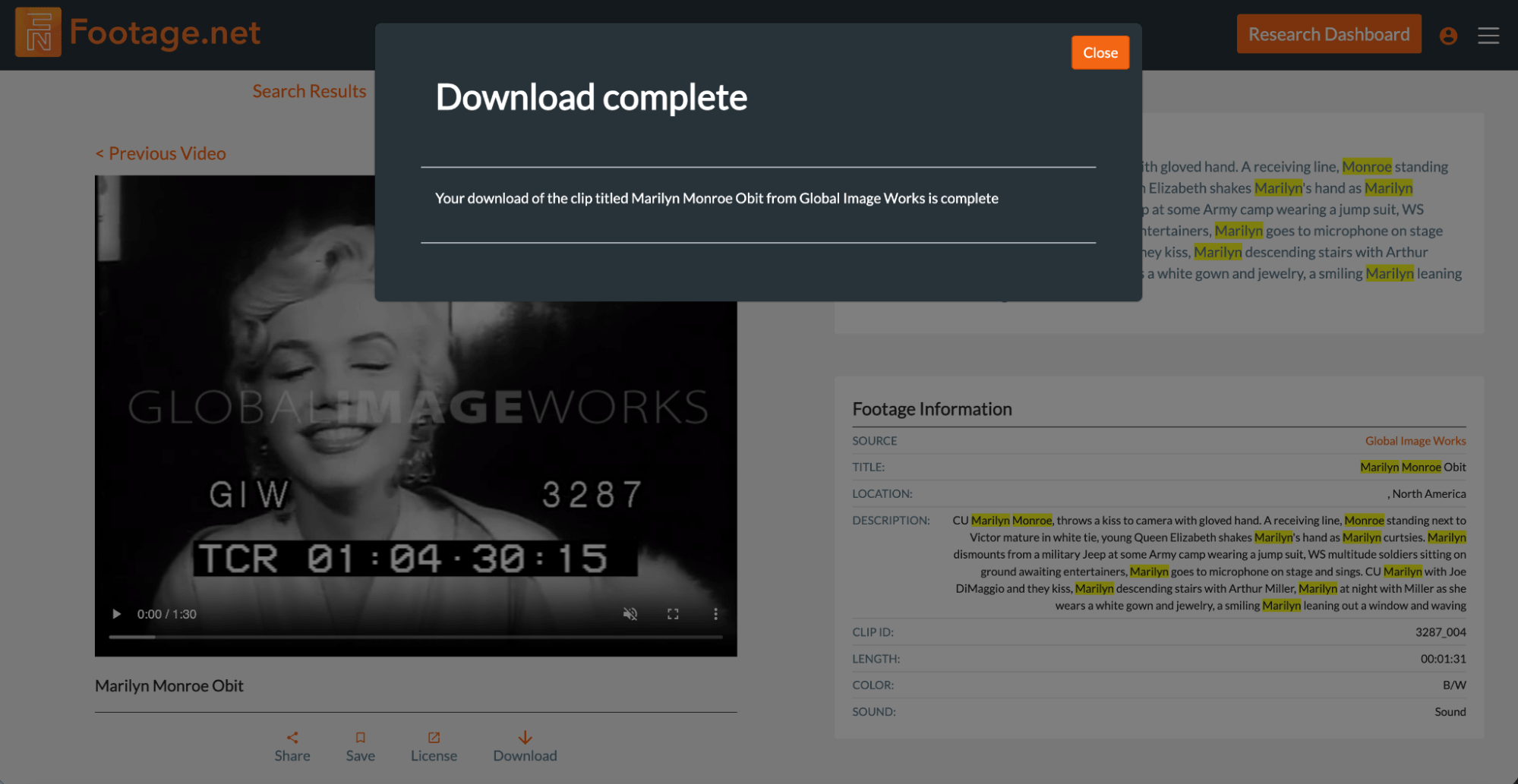
For editors and producers building an “offline” edit or storyboard, having physical access to preview files is essential. Footage.net facilitates this by allowing registered users to download watermarked screening clips directly from many of our partner archives.
Note: Downloadable video clips are watermarked previews, meaning they are low-resolution, watermarked versions of the high-quality masters you would eventually license.
To Download a Clip
- Make sure you are logged into your account.
- If a clip can be downloaded, you’ll see a “Download” icon under the preview.
- Click the download icon and the clip will be exported into your Downloads folder
- You will see a “Download complete” pop-up appear once the download is successful
You Did It!
Congratulations! You have successfully learned how to use the Footage.net global search feature.
If you still can’t find the clip you are looking for, we highly recommend using our Zap Email request feature. By sending a ZapEmail request, you will be able to contact our entire library of archive partners. If they have a clip that matches your request, they will contact you directly.
Send Your First Zap Email Request
Get the exact clip you need. Contact over 60+ professional archives with a single click.
Send a Zap Email